
Papercopy - Tracer
Durica MicunovicArt & Design
4.5276.00 Reviews
- Version
- 3.1.19
- Installs
- 1.00M
- Age Rating
- Everyone
Screenshots
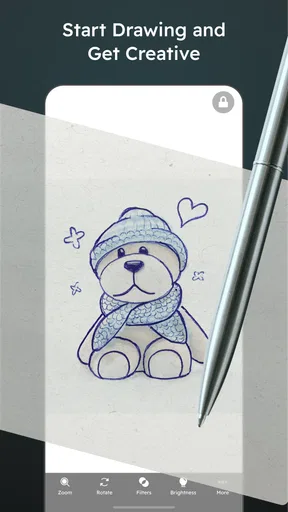
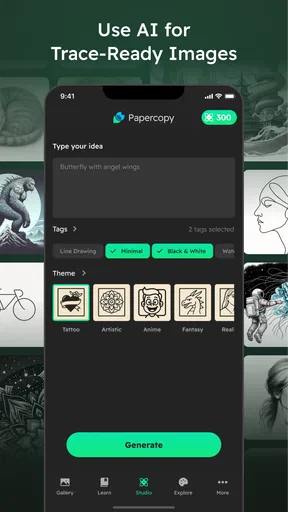
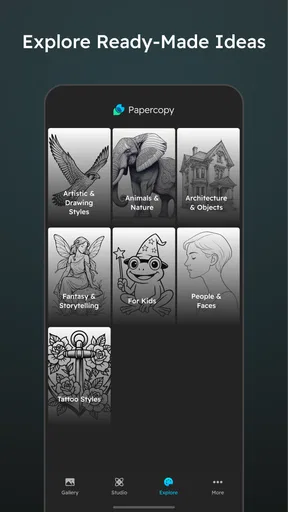
Our Review of Papercopy - Tracer
 Analysis by Appyee
Turning a picture on a phone into a drawing on paper sounds simple, but the physical gap between a bright screen and a blank page makes it surprisingly difficult. Papercopy - Tracer focuses on that exact problem: it helps me use my mobile screen as a visual guide while I copy an image onto paper. I found the idea more useful than a normal drawing app because the phone is not trying to replace the sketchbook. It acts as a temporary reference surface.
That makes this a very specific kind of Art & Design app. It is not mainly for painting digitally, editing photographs, or building finished illustrations inside the phone. Its purpose is to support a hands-on drawing process. I can choose a reference, place the phone where I can see it, and work on paper while following the visible lines. For beginners, that can make the first step feel much less intimidating. For experienced hobby artists, it can speed up rough layouts and help with proportions.
The app is free to install, with optional in-app purchases ranging from $1.49 to $49.99 per item. It is rated for Everyone, so the concept is accessible to a broad audience, including children using it with sensible supervision. Durica Micunovic is the developer, and the app has reached over a million installs with an average rating of 4.5 from around 7.3 thousand ratings. Those figures suggest that the basic idea has found a sizeable audience, although popularity alone does not make it suitable for every drawing style.
Using the phone as a drawing guide instead of a canvas
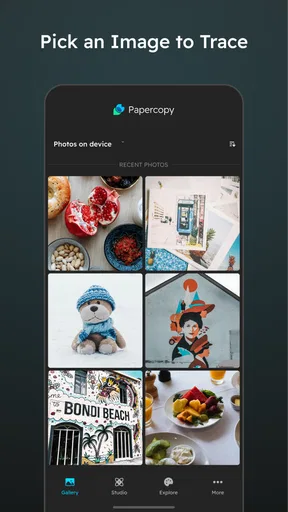
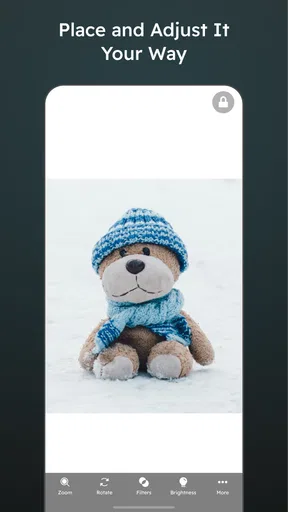
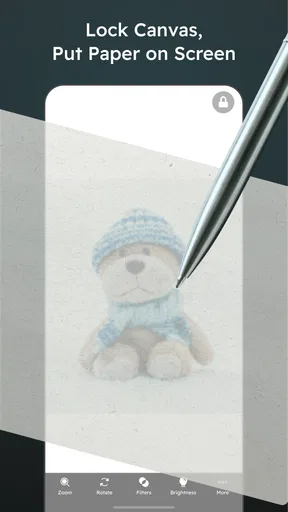
The central capability is straightforward: Papercopy - Tracer displays a reference on the mobile screen so I can copy its visible structure onto paper. That changes the job from inventing an image from memory to observing and transferring it. I still do the actual drawing by hand, which is important. The app does not turn a phone into a magic projector, and it does not remove the need for control, patience, or judgment. It gives me a stable visual target.
I especially noticed the difference when working with subjects that depend on proportion. A face, a simple object, or a character can look wrong when the main shapes are placed slightly too far apart. With a reference held in front of me, I can concentrate on the relationship between the outline, internal details, and empty spaces. The screen becomes a guide for placement rather than a substitute for learning how to draw.
That distinction matters when deciding whether this app is right for you. If you want a tool that produces a finished digital image, this is the wrong category of application. If you want to practice copying, prepare a handmade card, sketch a design for a craft project, or help a child begin drawing, the focused approach makes much more sense.
The short store description calls it Papercopy, but the practical value is in the workflow around that idea. I can work with a reference on the phone and keep the paper separate. This feels more natural than trying to draw with a finger on a small touchscreen, especially when the goal is a physical result. A phone screen is not a comfortable place for detailed freehand work, while it can be a convenient place to keep an image visible.
What changes when copying from a phone
Using a phone as a guide gives me a fixed composition, but it also introduces a few things to manage. The device needs to remain in a position where the reference is visible without getting in the way of my hand. The paper needs enough room beside or below it, depending on how I arrange the workspace. A small table, a book, or a simple stand can make the experience much easier, even though the app itself is doing the visual part.
I recommend beginning with a bold, uncomplicated image rather than a photograph full of tiny details. Strong outlines are easier to follow, and a limited number of shapes lets me judge whether the phone is positioned comfortably. This is one of the most useful ways to approach the app: treat the first attempt as a setup test, not as a final artwork. Once the viewing angle and paper position feel right, more detailed references become less frustrating.
A useful technique is to establish the largest forms before chasing small marks. I first look at the overall width and height of the subject, then place the main contour, and only afterward add features such as eyes, folds, or decorative elements. The app can show me what to copy, but it cannot decide which lines are structurally important. That decision still belongs to me, and making it improves the result more than blindly tracing every visible detail.
Another practical tip is to leave a little space around the expected drawing area. If I try to fill the entire page immediately, a small positioning mistake can force the composition too close to an edge. Starting smaller gives me room to correct proportions and add a border or background later. This is a trade-off: the phone may show a detailed image, but transferring every part at the same scale is not always the most comfortable or useful choice.
A realistic everyday use case
Imagine I want to make a handmade birthday card but do not trust myself to draw a clean animal or cartoon figure from memory. I can choose a simple reference, open it in the app, place the phone beside the card, and sketch the outline lightly with a pencil. After checking the proportions, I can darken the successful lines, erase the construction marks, and finish the card with colored pencils or markers. The phone helps with the initial confidence problem while the final object remains personal and handmade.
The same approach works for a child who wants to draw a favorite type of vehicle, a pet, or a fantasy creature. Instead of handing over a complicated digital drawing interface, I can give the child a visible model and let them make decisions with real pencils and paper. The result will not necessarily be accurate, but the process is more active than simply coloring a completed image on a screen. It encourages looking, comparing, and making corrections.
I also see value in quick design planning. Someone making a painted sign, decorating a notebook, or preparing a small craft can use the phone to establish an outline before adding their own style. In that situation, the application is not the creative decision-maker. It is closer to a portable reference board that reduces the effort of getting the first shapes in the right place.
Where it is stronger than ordinary drawing apps
Compared with a standard digital sketching app, Papercopy - Tracer has a clear advantage for anyone who wants a paper result. Ordinary drawing apps usually offer brushes, layers, color controls, and undo tools, but they keep the work on the screen. That is excellent for digital illustration, yet it does not help much when I want graphite texture, marker bleed, watercolor, or the physical feel of a page.
It is also less demanding than learning a full illustration program. A conventional art app can be powerful, but the number of tools often creates a second task: learning the software before making the artwork. Here, the main challenge stays where I expect it to be—on the paper. I can focus on line quality, pressure, erasing, and color instead of navigating a crowded toolbar.
On the other hand, a full drawing app is better when I need layers, precise editing, multiple revisions, or a clean file for later use. If I am designing a logo, refining a digital character, or preparing artwork that must be exported and adjusted repeatedly, a dedicated illustration tool gives me more control. Papercopy - Tracer is most convincing when the physical drawing is the destination, not merely an intermediate step.
Important trade-offs before relying on it
The phone-based approach is convenient, but it is not the same as projecting an image onto paper. I still have to judge scale and position by eye. The reference and the page are separate surfaces, so the drawing can drift if I change my posture or move the device. This is not a flaw in the concept so much as a limitation that users should understand before expecting perfectly aligned results.
Screen size also affects comfort. A phone is portable, but a small display can make intricate references tiring to study. Zooming into details may help me inspect a feature, yet it can make it harder to remember how that feature relates to the whole image. I get better results by switching between the overall composition and selected details rather than staying zoomed in for the entire drawing.
Lighting and glare can influence the experience as well. A bright room may make the screen easier to see, while reflections can make faint lines difficult to follow. I prefer a stable indoor workspace with the screen angled away from direct light. This is a simple adjustment, but it prevents me from blaming the app for a visibility problem caused by the environment.
There is also a creative trade-off. Following a reference can improve confidence and proportion, but copying too literally may leave little room for personal interpretation. I think the best use is to borrow the structure and then make deliberate changes: alter the expression, simplify the details, add a different pattern, or combine several references in separate stages. Used this way, the app supports learning rather than turning every drawing into an exercise in mechanical imitation.
Because the application includes in-app purchases, I would also approach the free experience with realistic expectations. The app is listed as free, but some optional items cost between $1.49 and $49.99 each. I would check what is available before building a regular workflow around paid tools. For a casual user, the free starting point may be enough to decide whether the method feels natural. For someone planning frequent use, understanding which extras matter is more sensible than buying immediately.
Small workflow choices that improve results
My preferred process begins with a light pencil and a simple reference. I place the largest shape first, compare its height and width with the image, and then add internal landmarks. For a face, that might mean the head shape and eye line before individual features. For an object, it might mean the outer silhouette and the main divisions. This prevents detail from hiding a proportion problem.
I also keep the phone and paper at a consistent angle. Even a slight change in viewpoint can make the reference feel different from one moment to the next. If I need to pause, I mark the paper lightly rather than moving everything. That small habit is particularly helpful for longer drawings, where repeatedly rebuilding the setup can become more tiring than the drawing itself.
For children or complete beginners, I would choose references with clear separation between the subject and background. Busy images encourage tracing too many lines and can make the exercise feel like a test. A clean outline lets the user understand what the app is helping with: placement, observation, and confidence. Later, more complex images can introduce shading and texture without overwhelming the first attempt.
For craft work, I would use the app for a planning pass rather than the final transfer. I can sketch the design on scrap paper, adjust the arrangement, and then recreate the improved version on the card, fabric, or notebook cover. This costs a little more time, but it reduces the risk of committing an awkward composition directly to the final material. The app is especially useful at this stage because it makes experimentation less intimidating.
Who will get the most from it
I think the strongest audience is made up of beginners, casual artists, parents looking for a guided drawing activity, and people who want to turn a phone reference into a handmade object. It is also suitable for hobbyists who understand that tracing a foundation is only one part of a drawing. The Everyone age rating makes the concept broadly approachable, while the physical-paper workflow gives it a different feel from screen-only art tools.
Someone learning observational drawing can use it as training wheels. I would not stay dependent on it forever, but it can help me understand relative size and placement before I attempt the same subject without assistance. A useful progression is to copy an image with the app, draw it again while looking only at the reference, and then try a third version from memory. That turns a convenience feature into a structured practice exercise.
It is less suitable for artists who need professional digital controls, for people who want automatic conversion into polished line art, or for anyone expecting a projector-like overlay directly on the page. It is also not my first choice when the reference contains fine detail that cannot be comfortably viewed on a phone. In those cases, a larger display, printed reference, or specialized digital illustration software may be a better fit.
The current version is 3.1.19, and the app supports devices running Android 6.0 or newer. That makes it available to many older Android phones, which is useful if I want to dedicate an existing device to a drawing table rather than use my newest phone. Still, the practical experience will depend on the individual screen, battery condition, and how comfortable the device is to keep visible during a session.
My recommendation after using the concept
Papercopy - Tracer succeeds because it does not try to be everything. Its useful capability is narrow: keeping a visual reference on a mobile screen while I draw on paper. Within that boundary, it can remove the hardest emotional barrier for beginners—the fear of starting with a blank page—and it can make small handmade projects more approachable.
I would recommend trying it if your goal is a physical sketch, card, decoration, or practice exercise. Start with a simple image, use light construction lines, stabilize the phone, and treat the reference as guidance rather than a command to copy every mark. Those choices make a larger difference than jumping straight into complex artwork.
I would skip it if I mainly want digital painting, advanced editing, export-oriented design, or perfectly aligned projection. A conventional drawing application or another physical reference method will serve those needs better. For the right user, though, this free Art & Design app offers a practical bridge between looking at an image on a phone and making something with real materials. That focused bridge is the reason I can recommend it to a friend who wants to draw on paper but needs a little help getting started.
My final view: use it as a guide, not a replacement for your own judgment. The best results come when the app handles visual reference and you handle the decisions, corrections, style, and finishing work.
Verdict
Strengths of Papercopy - Tracer
- Simple interface that beginners can understand quickly.
- Useful for practicing proportions, outlines, and basic drawing control.
- Works well for tracing small reference images on a phone.
- Helpful for artists who prefer guided, step-by-step copying.
- Can make casual sketching more accessible without advanced tools.
Limitations of Papercopy - Tracer
- Phone screens may feel too small for detailed tracing work.
- Long sessions can cause hand strain while holding the device.
- Results depend heavily on the quality of the reference image.
- Limited precision compared with a dedicated drawing tablet.
- Some features may be restricted or interrupted by advertisements.
Similar Picks in This Category
View All
Canva: AI Photo & Video Editor
Canva4.8

PENUP – Drawing-sharing SNS
Samsung Electronics Co., Ltd.4.5

Crafto
Kutumb App4.6

Sketchbook
Sketchbook4.1

ibis Paint X
ibis inc.4.5

Adobe Express: AI Photo, Video
Adobe4.6
Frequently Asked Questions
What is Papercopy - Tracer and how does it work?
Papercopy - Tracer is a drawing and tracing assistant designed to help users reproduce images on paper more accurately. It typically uses your device’s camera and screen to display a reference image while you work, allowing you to follow visible outlines or proportions. The app is useful for beginners, students, hobby artists, and anyone practicing sketches, lettering, or simple illustrations.
Do I need special equipment to use Papercopy - Tracer?
You generally do not need professional drawing equipment to get started with Papercopy - Tracer. A smartphone or tablet, a sheet of paper, and a pencil are usually enough. For better results, you should place the device on a stable support or use a stand so the camera and reference image remain steady while drawing. Good lighting also makes the tracing process easier and more comfortable.
Can Papercopy - Tracer be used with my own photos or images?
The app is intended to work with reference artwork, and depending on the available features and permissions, you may be able to select an image from your device or use a picture captured with the camera. This makes it practical for tracing objects, portraits, patterns, and personal designs. Before downloading, check the current app listing to confirm supported image formats and import options.
Is Papercopy - Tracer suitable for beginners and children?
Papercopy - Tracer can be helpful for beginners because it reduces the difficulty of copying proportions and gives users a visual guide to follow. Children may also enjoy it for simple crafts and drawing exercises, although younger users should be supervised when handling the device and selecting images. It is best viewed as a learning aid rather than a replacement for developing freehand skills.
Is Papercopy - Tracer free to download, and are there advertisements or in-app purchases?
The availability of free tools, advertisements, premium functions, or in-app purchases can vary according to the app version and whether you use Android or iOS. Some tracing applications provide basic functionality at no cost while reserving advanced controls or an ad-free experience for paid users. Review the official store page before installing so you understand the pricing, subscriptions, and permissions involved.
